← Back to LUMA CS-1FREE PREVIEW
L&B PLUGINS · DADHOUSE x L&B AUDIO WORKS
LUMA CS-1
Chord sampler: turns any audio into chords, always in key
User Guide · version 2.0.2
Standalone plugin for Akai MPC · MPC OS 3.10.1 or later · Built with Akai's official MPC Plugin SDK
1. What LUMA CS-1 is
LUMA CS-1 is an insert effect. Put it on a drum loop, hi-hats, noise, vinyl crackle, a vocal or a kalimba and the sound rings out as a chord, played by one of 20 sounds (tuned strings, glass resonators, a chord vocoder, keys, harp, choir and more).
The chords move through a progression of up to 8 chords, locked to the MPC's song position, and every chord is always in your key. You can pick a ready-made progression, roll a random one, or set each chord yourself.
What is new in version 2.0.2
- 2.0.2: protection against "denormal" CPU spikes as reverb and echo tails fade out, so LUMA stays light on the MPC.
- 2.0.1: Layer and Split now work properly (in 2.0.0 the second sound only made a short click).
- 2.0.1: Drive now changes the sound: it is a soft saturation into the chords, from 0 clean to 100 gritty.
- 2.0.1: Mix and Volume move smoothly, with no zipper noise when you turn or automate them.
- 2.0.1: the playing-chord light ("Now") is no longer recorded as automation, and the tail allowance is longer (12 s) to match the longest Ring.
- Projects saved with 2.0.0 open with the same settings.
Before you start you need:
• An Akai MPC that runs MPC OS 3.10.1 or later in standalone mode.
• A USB stick, SD card or the MPC's internal drive.
• LUMA CS-1 is an EFFECT plugin (it processes audio on an insert).
2. Install it (one time)
- Unzip the download
On your computer, unzip the file you downloaded. Inside you will find a folder called Dudi - VST - LUMA CS-1, plus INSTALL.txt, README.md and this guide. - Make a VST2 Plugins folder
Plug a USB stick or SD card into your computer (or use the MPC's internal drive in Computer Mode). At the very top level of that drive, create a folder named exactly VST2 Plugins (capital V, S, T, P, with the space). If it is already there, use it. - Copy the plugin folder in
Copy the whole Dudi - VST - LUMA CS-1 folder into VST2 Plugins. Do not rename it and do not copy just the files inside. It must look like this:<drive>/VST2 Plugins/Dudi - VST - LUMA CS-1/plugin.json - Update the MPC if needed
On the MPC, press Menu, tap Preferences, then the Info tab (or About) and check the version. It must be 3.10.1 or later. If it is older, update the MPC first with the official Akai updater. - Switch on external plugins
On the MPC: Menu > Preferences > Enhancements (Beta). Turn on Enable Enhancements, then turn on External Plugin Support. Until both are on, the plugin stays hidden. - Plug in the drive
Put the USB stick or SD card in the MPC. If the plugin does not show up, restart the MPC with the drive plugged in.
3. Load it on the MPC
- Open the Channel Mixer
Press Menu and tap Channel Mixer (or press Mixer). Choose the track, program or pad you want to turn into chords. - Pick an empty insert
Tap an empty Insert slot on that channel. - Choose LUMA CS-1
In the effect browser, open External Plugins and tap LUMA CS-1. Double-tap the insert to open its screen. - Press play
Start your sequence. Turn Mix up on the PLAY page to hear the chords. Use the Q-Links: they follow whichever page is on screen.
4. Quick start
- Load a preset (the presets are named after what they do, e.g. Pop Harp Strum, Split Strings | Bell).
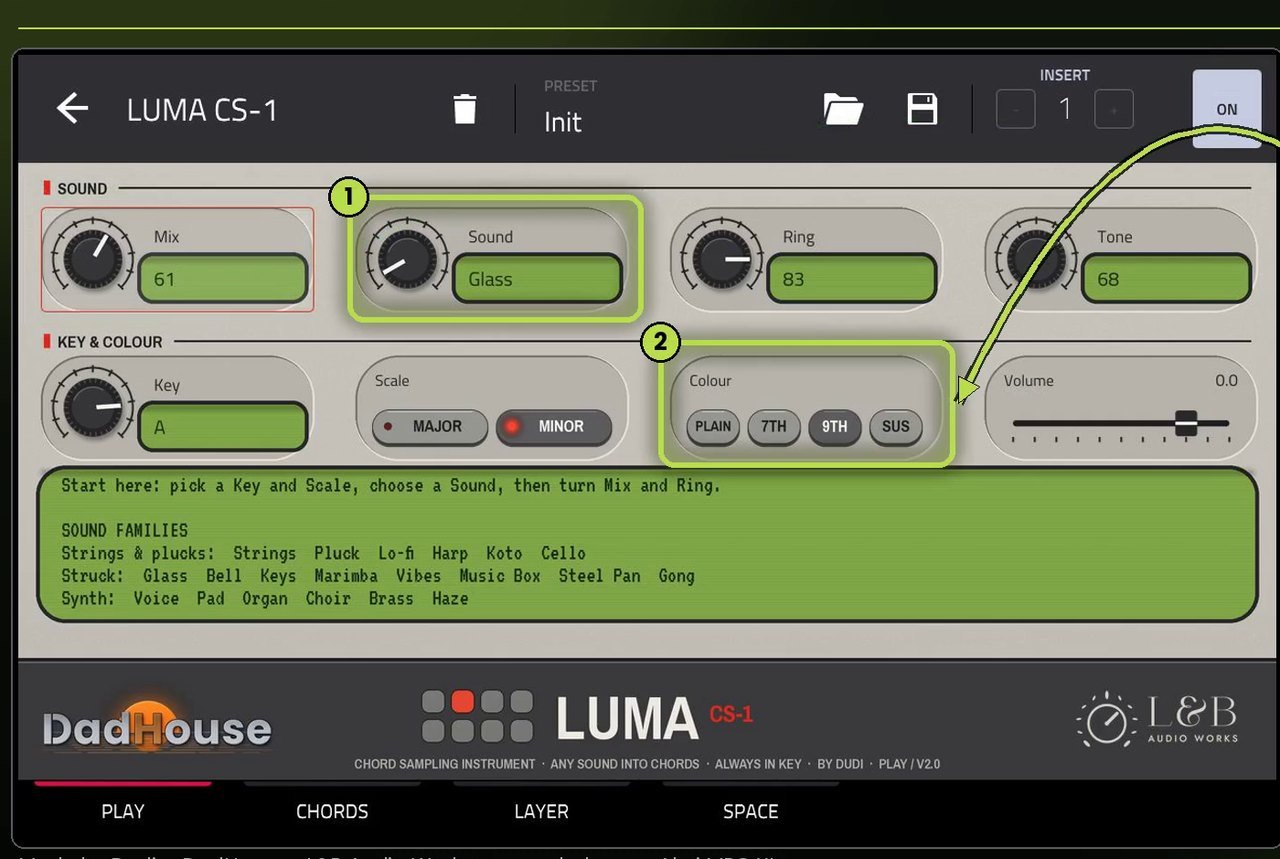
- On PLAY, choose a Sound, set Key and Scale to match your track.
- Turn Mix (how much chord you hear) and Ring (how long each chord sustains).
- On CHORDS, pick a Progression or turn the chord knobs. They show the chord name (Am7, Fmaj7...).
- Press play. The chord changes every Change (1/2, 1, 2 or 4 bars). When the MPC is stopped LUMA keeps cycling at the project tempo so you can audition.
5. Every page and control
PLAY page. The main sound and key.
END OF PREVIEW
Get the full LUMA CS-1 guide
The complete guide comes with LUMA CS-1 on your private download page:
- All 4 plugin pages and every control explained, with screenshots
- Presets and recipes
- Troubleshooting and updates
$2.99 once, every future update and new version free for life.
Get LUMA CS-1 · $2.99Secure checkout by Stripe · instant download